
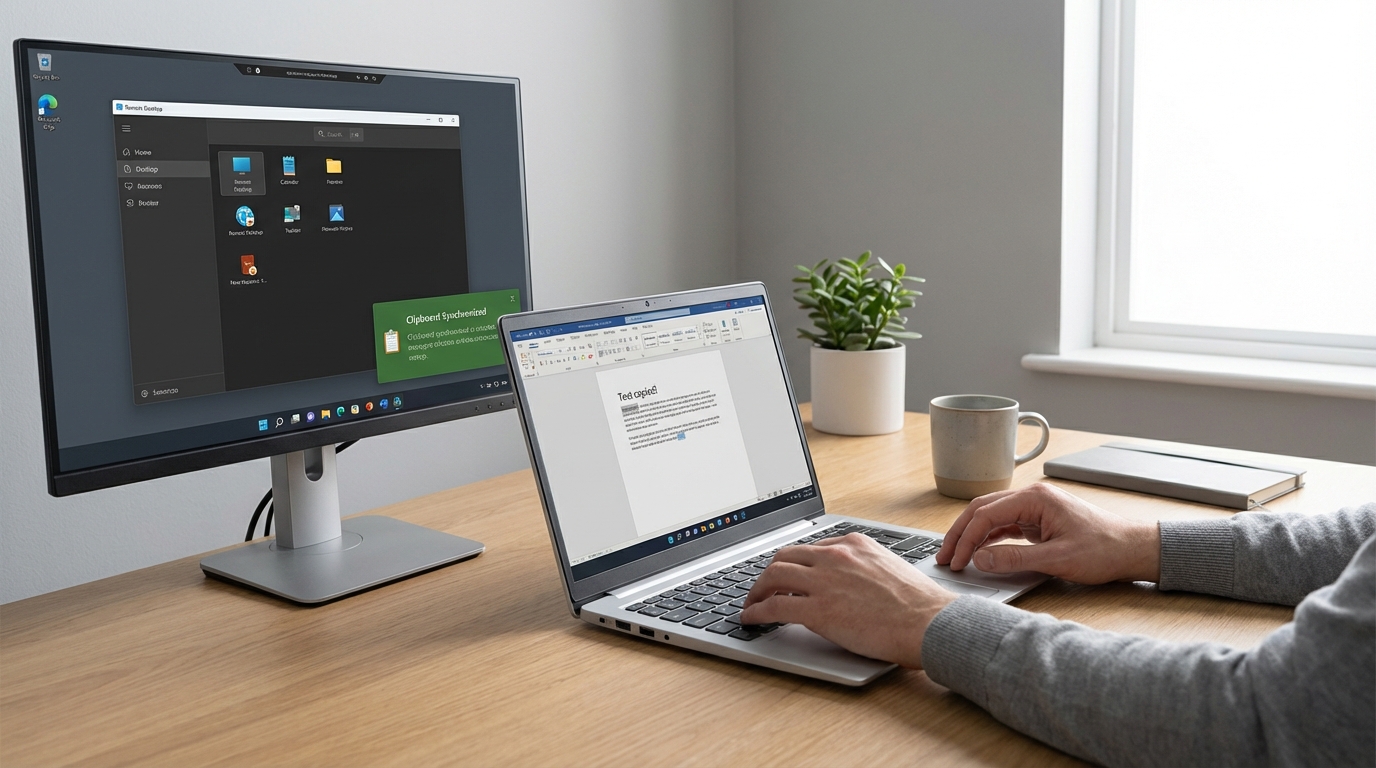
The quickest way to fix copy-paste issues in Remote Desktop (RDP) is to restart the clipboard monitor process on the remote computer. You don't need to reboot the whole machine. Just open Task Manager on the remote PC, find the process named rdpclip.exe, right-click it and select End Task. Then, go to File > Run new task, type rdpclip.exe, and hit Enter. That usually kickstarts the clipboard immediately.
Key Takeaways
- The #1 Fix: Killing and restarting
rdpclip.exefixes about 90% of these issues instantly. - Check Settings: Sometimes the "Clipboard" box in your RDP connection settings gets unchecked by accident.
- Admin Rules: If you are on a work computer, Group Policy might be blocking clipboard sharing for security.
- File Transfer: Copying text and copying files are handled slightly differently; sometimes one works while the other fails.
Why Does This Even Happen?
Honestly, it's one of the most annoying bugs in Windows. You are working hard, you copy a line of code or a paragraph of text from your local machine, switch to the remote window, hit Ctrl+V, and... nothing. Or worse, it pastes something you copied three hours ago.
Basically, Remote Desktop uses a little program called rdpclip.exe to manage the "shared clipboard" between your main computer and the one you are remote controlling. Sometimes, that little program gets confused or the connection chain breaks. It just stops listening. It happens to the best of us.
Here is a deep dive into every possible way to fix this, starting with the easy stuff and moving to the "IT Pro" stuff.
Method 1: The "rdpclip.exe" Restart (Detailed Walkthrough)
This is the bread and butter fix. I use this probably once a week. Since the clipboard viewer is just a regular process, we can kill it and start it again without messing up anything else on the server.
Follow these steps exactly on the remote computer (the one you are connecting TO):
- Right-click the Taskbar and select Task Manager. Alternatively, you can press Ctrl + Shift + Esc. Note: If you press Ctrl+Alt+Delete, it might trigger on your local computer instead of the remote one, so the shortcut is safer.
- Click on the Details tab. If you are on an older version of Windows, it might just be under the "Processes" tab.
- Scroll down until you find rdpclip.exe. It stands for RDP Clipboard Monitor.
- Right-click on it and choose End Task. Don't worry, the screen won't go black or anything.
- Now, in Task Manager, look at the top menu. Click File and then Run new task.
- In the box that pops up, type
rdpclip.exeand click OK.
Try pasting your text now. It should work instantly. If it doesn't, try restarting the process one more time, but this time also restart explorer.exe using the same method. Just be warned, restarting explorer.exe will make your taskbar disappear for a second.
Method 2: Check Your Connection Settings
Sometimes the problem isn't a bug, it's just a setting. If you updated your computer recently or created a new RDP shortcut, the defaults might have changed.
You need to check this on your local computer (the one you are sitting in front of) before you connect.
- Open the Remote Desktop Connection app (mstsc.exe).
- Before you click "Connect", look for a little arrow or button that says Show Options at the bottom. Click that.
- Go to the Local Resources tab.
- Look at the section labeled "Local devices and resources".
- Make sure the checkbox for Clipboard is ticked.
If that box is empty, your computer is purposefully blocking copy-paste. Check it, save the connection, and try again. I've seen this get unchecked after a Windows update for no apparent reason.
Method 3: Copying Files vs. Copying Text
This is a weird nuance that a lot of people miss. Sometimes you can copy text (like a URL) just fine, but if you try to copy a file (like an Excel sheet) from your desktop to the server, the "Paste" option is greyed out.
This usually involves the "Drives" setting.
- Go back to that Local Resources tab I mentioned in Method 2.
- Click the button that says More... at the bottom of the Local devices section.
- You will see a list of drives (C:, D:, etc.).
- Check the box for Drives (or specifically your C: drive).
When you enable this, Windows creates a sort of virtual tunnel for file transfers. Without the drives mapped, the remote computer doesn't know where to pull the file from, even if the clipboard knows you copied a file.
Method 4: The Group Policy Fix (For Work Computers)
If you tried the first two methods and it still doesn't work, there is a chance your company's IT department disabled it. However, sometimes it's just a local policy error that you can fix if you have admin rights.
This involves digging into Group Policy. It looks scary, but it's pretty straightforward.
Note: This works on the Pro and Enterprise versions of Windows. If you have Windows Home, you might not have the Group Policy Editor.
- On the remote computer, press Windows Key + R to open the Run box.
- Type
gpedit.mscand hit Enter. - You need to navigate through this folder tree:
Computer Configuration > Administrative Templates > Windows Components > Remote Desktop Services > Remote Desktop Session Host > Device and Resource Redirection. - Look for a setting on the right side called Do not allow Clipboard redirection.
- Double-click that setting.
- Select Disabled or Not Configured.
This is confusing, I know. You want to Disable the rule that says "Do not allow". Double negatives are fun, right? Once you change this, you might need to reboot the remote machine or run a command prompt update (gpupdate /force) to make it stick.
Method 5: Command Prompt (The "Hacker" Way)
If you don't like clicking around in Task Manager, or if Task Manager is being slow, you can do the reset using the Command Prompt. It's actually faster if you are comfortable typing commands.
- Open the Start menu on the remote PC and type
cmd. - Right-click Command Prompt and run as Administrator.
- Type this command to kill the clipboard process:
taskkill /f /im rdpclip.exe - You should see a message saying "SUCCESS".
- Now type this to start it back up:
start rdpclip.exe
Done. It's the exact same result as Method 1, just executed differently.
Method 6: Registry Tweaks (Last Resort)
Okay, be careful here. Touching the Registry is like doing open-heart surgery on Windows. If you delete the wrong thing, you can break stuff. But, according to some deep tech forums and Microsoft documentation, sometimes a registry value gets stuck.
Only do this if nothing else worked.
- Open the Run dialog (Win + R) and type
regedit. - Navigate to this path:
HKEY_LOCAL_MACHINESYSTEMCurrentControlSetControlTerminal ServerWds dpwd - Look for a value named fDisableClip. Make sure it is set to 0.
- Then look at this path:
HKEY_LOCAL_MACHINESYSTEMCurrentControlSetControlTerminal ServerWinStationsRDP-Tcp - Check fDisableClip there too. It should also be 0.
If it was set to 1, change it to 0 and reboot the machine. That essentially forces the clipboard to be enabled.
Alternative: Drag and Drop vs. Copy Paste
A lot of people think these are the same thing, but RDP handles them differently. In modern versions of Windows 10 and 11, dragging a file from your desktop to the RDP window should work, but it's notoriously buggy.
If copy-paste is failing, try this workaround instead:
Open File Explorer on the remote machine. Because you mapped your drives (back in Method 3), you should see something under "This PC" that looks like C on Desktop-ABC1234. That is your local computer's hard drive.
You can browse your own computer from the remote computer. Find the file you need, copy it from that folder, and paste it onto the remote desktop. It bypasses the clipboard buffer memory which is often where the crash happens.
What if I'm on a Mac?
Oh, the Mac to Windows struggle. I feel you. If you are using the "Microsoft Remote Desktop" app from the App Store, the keys are different.
Remember that inside the RDP window, Windows expects the Control (Ctrl) key, not the Command (Cmd) key. So you copy on your Mac with Cmd+C, click into the RDP window, and you have to press Ctrl+V (using the actual Control key on your Mac keyboard).
Also, in the Mac app settings, right-click your connection > Edit > Devices & Audio > check the "Clipboard" box. Mac updates tend to reset this setting pretty often.
Why Does the Clipboard Chain Break?
You might be wondering why you have to fix this repeatedly. Is your computer broken?
Probably not. The way RDP works is it creates a "chain" of viewers. When you copy something, your local PC tells the network "Hey, I have data," and the remote PC has to say "Okay, let me sync that."
If your internet hiccups for even a millisecond, or if you copy a massive chunk of data (like a high-res image) that takes too long to sync, the rdpclip.exe process can time out. It basically panics and stops listening to avoid crashing the whole connection. Restarting it just resets that listener.
Frequently Asked Questions
Does restarting rdpclip.exe affect other users on the server?
No, usually not. If you are on a shared Terminal Server, your instance of rdpclip.exe is typically tied to your specific user session (your ID). Killing it shouldn't mess up Bob from Accounting's clipboard, although it's always good practice to be careful on shared servers.
I fixed it, but it broke again 10 minutes later. Why?
This usually points to a network stability issue. If your connection is laggy or dropping packets, the clipboard sync is the first thing to die. Try lowering your RDP graphical settings (turn off wallpaper, lower color depth) to save bandwidth. It might keep the connection stable enough for the clipboard to survive.
Can I copy-paste files larger than 2GB?
This is a known limitation in older RDP versions. Even on newer ones, copy-pasting massive files via the clipboard buffer is risky and slow. For big files, it is much better to map the drive (Method 3) and copy it via File Explorer, or just use a cloud service like OneDrive or Google Drive to transfer it.
Is there a permanent fix?
If this happens daily, you might want to create a batch file on your remote desktop. Open Notepad, type:
taskkill /f /im rdpclip.exe
start rdpclip.exe
Save it as FixClipboard.bat on your desktop. Next time it breaks, just double-click that icon. It saves you the trip to Task Manager.
Why is "Paste" greyed out?
If Paste is greyed out, it means the remote computer doesn't think there is anything on the clipboard. This confirms the link is broken. If you can Paste, but nothing happens, that usually means the format isn't supported (like trying to paste a complex Photoshop object into Notepad).