
Key Takeaways
- Zero Trust Mindset: Never trust a network just because it looks safe. Treat your home Wi-Fi like you would a coffee shop connection.
- Layered Defense: Don't rely on just one tool. You need a password manager, MFA (Multi-Factor Authentication), and a solid VPN working together.
- Physical Separation: Keep your work laptop for work. Do not let your kids play games on it, and don't use it for personal browsing if you can avoid it.
- The Human Factor: You are the weakest link. Most hacks happen because someone clicked a link they shouldn't have, not because of some fancy code.
Being a Top Secure Remote Worker: The Real Deal
You want to know how to be the ultimate secure remote worker? It's not about buying the most expensive software or being a computer genius. It is about habits. Being secure is 90% behavior and 10% tools.
If you are working from your couch, a beach in Bali, or just your kitchen table, the risks are basically the same. Hackers don't care where you are; they just care that you're connected to the internet. And since remote work is the norm now, you are a target. Companies are hardening their main offices, which means you-the remote employee-are the new entry point.
So, let's break down exactly how you lock your digital life down without making it impossible to actually get work done.
1. Stop Recycling Passwords (Seriously, Stop It)
I know, I know. You've heard this a million times. But be honest with me, are you still using "Fido123" for your email and your bank login? If one site gets breached, they have the keys to your whole kingdom.
The single best thing you can do is use a Password Manager. There are tons of good ones out there like 1Password, LastPass or Bitwarden. The goal is that you shouldn't even know your passwords. They should be long, ugly strings of random characters that you copy and paste.
According to security experts (and common sense), credential stuffing is one of the top ways bad guys get in. That's where they take a password leaked from one site and try it on fifty others. If you use unique passwords for everything, that attack fails instantly.
2. Multi-Factor Authentication is Your Best Friend
You might find it annoying to grab your phone every time you log in, but Multi-Factor Authentication (MFA) is the wall that stops hackers when they inevitably get your password.
Think of it like this: Your password is the key to the house, but MFA is the deadbolt. Even if they steal your key, they can't open the door without your thumbprint or that code from your phone.
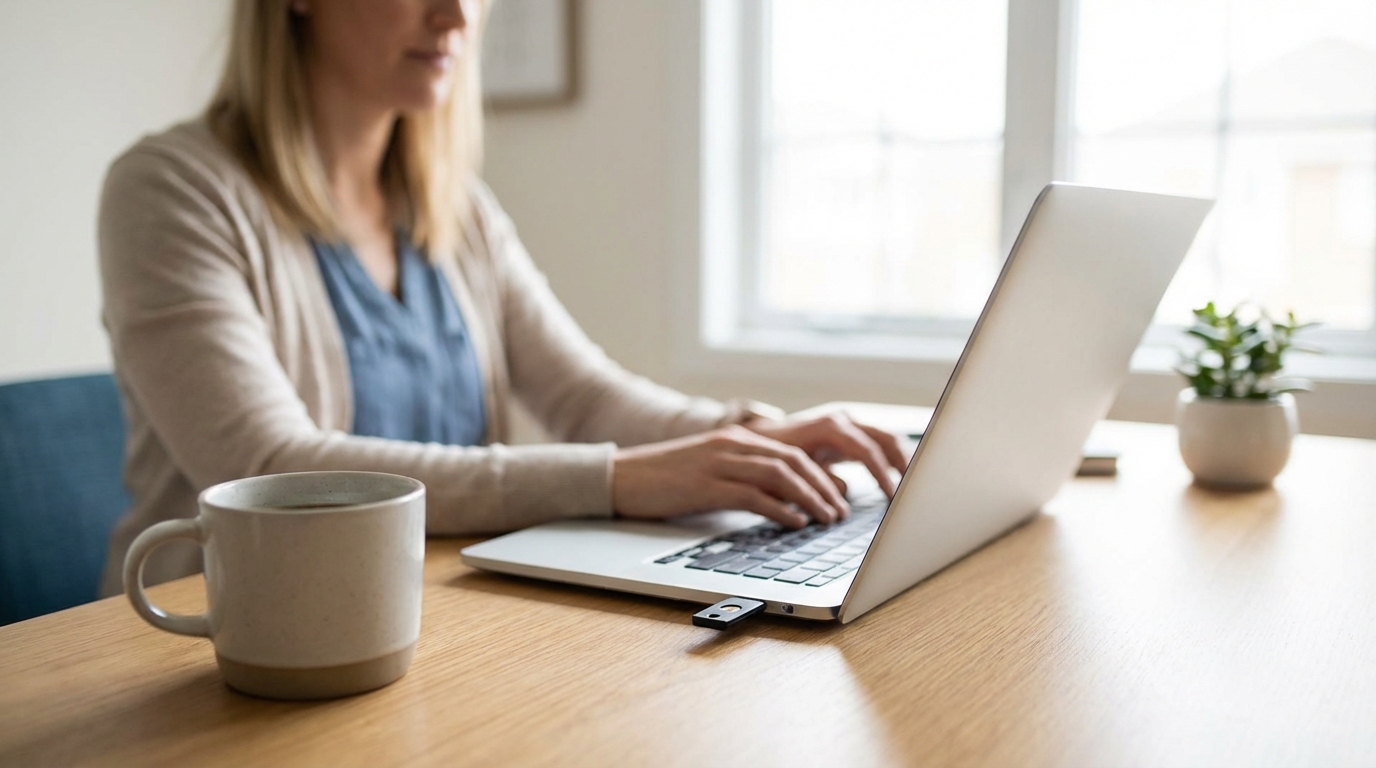
Try to avoid SMS (text message) codes if you can. They are better than nothing, but hackers can swap SIM cards to steal your phone number. Instead use an authenticator app like Google Authenticator or Microsoft Authenticator. If you want to go full "secret agent," get a hardware key like a YubiKey. It's a little USB stick you plug in to prove it's really you.
3. The Home Router Situation
When was the last time you looked at your Wi-Fi router? Probably when you plugged it in three years ago, right?
Most ISPs (Internet Service Providers) give you a router with a default password sticker on the bottom. The problem is, lists of these default passwords float around the web. You need to log into your router and change the administrator password. Not just the Wi-Fi password you give to guests, but the password to change the settings.
Also, make sure your encryption is set to WPA2 or WPA3. If you're using WEP, you might as well just shout your credit card number out the window. It's ancient technology and takes about 5 minutes to crack.
4. VPNs: Not Just for Watching Netflix Abroad
A Virtual Private Network (VPN) creates an encrypted tunnel between your computer and the internet. When you are at home, your Wi-Fi is probably okay if you secured the router like I mentioned above. But the second you step out the door, you're in the danger zone.
Coffee shops, airports, and hotels have terrible security. It is super easy for someone sitting two tables away to "sniff" the traffic on public Wi-Fi. They can see what sites you're visiting and potentially steal data.
Using a VPN scrambles that data. To anyone watching, it just looks like gibberish. If your company provides a corporate VPN, use it. If not, invest in a reputable one. Avoid the "free" VPNs you see in app stores. Running servers costs money, so if the product is free, they are likely selling your data to advertisers. Which kinda defeats the point of privacy, doesn't it?
5. The Device Separation Rule
This is a hard one for people. You have a nice, powerful work laptop. It's tempting to use it to shop on Amazon, check your personal Gmail, or let your kid play Roblox while you make dinner.
Don't do it.
Keep church and state separate. Your work device should be for work. Your personal device is for personal stuff. Why? Because personal browsing is where you are most likely to pick up malware. If you click a bad link while looking for recipes on your work laptop, that malware could jump onto your company network.
Plus, there is the privacy angle. Your employer likely has software installed that can see what you are doing. Do you really want IT knowing how much time you spend looking at cat memes?
6. Update Your Stuff. Immediately.
You know that little pop-up that says "Update Available" and you click "Remind me tomorrow" for three weeks straight? You gotta stop doing that.
Software updates aren't just about new features or changing the look of the icons. Usually, they include security patches. Hackers find holes in software (called vulnerabilities), and the software companies rush to fix them. The time between the hacker finding the hole and you installing the update is when you are vulnerable.
Turn on automatic updates for your operating system (Windows or macOS) and your browser. Browsers like Chrome and Firefox are the front line of defense, so keep them fresh.
7. Don't Get Phished
Technical controls can only do so much. The easiest way to hack a company is to trick a human. This is called "Social Engineering."
Phishing emails have gotten really good. They don't just look like the old "Prince of Nigeria" scams anymore. Now, they look like a legit email from Microsoft saying "Your password has expired, click here to reset." Or an email from your boss saying, "Hey, I'm in a meeting and need you to buy gift cards for a client right now."
Here is the rule: Verify, then trust.
If you get an email asking for a login, a payment, or sensitive info, pause. Look at the sender's address carefully. Hover over the link without clicking it to see where it really goes. If it looks weird, call the person. Actually pick up the phone. It takes two minutes and can save you a massive headache.
8. Physical Security Still Matters
Just because you work remotely doesn't mean physical theft isn't a risk. If you work at a co-working space or a cafe, never leave your laptop unattended. Not even to grab a napkin. It takes seconds to swipe a laptop.
Also, get a privacy screen filter. It's a piece of plastic that goes over your screen so that unless you are sitting directly in front of it, the screen looks black. This stops "shoulder surfing"-where someone sits behind you and reads your confidential emails over your shoulder. It makes you look paranoid, but honestly, it's a badge of honor for a top secure remote worker.
9. Back It Up
Ransomware is a nasty type of malware that locks up all your files and demands money to unlock them. If you get hit, you have two choices: pay the criminals (and maybe not get your files back) or wipe your computer and restore from a backup.
If you don't have a backup, you're toast.
Follow the 3-2-1 Rule usually recommended by IT pros:
- 3 copies of your data (the original and two backups).
- 2 different types of media (like an external hard drive and the cloud).
- 1 copy offsite (the cloud covers this).
Most cloud services like OneDrive or Google Drive do a decent job of versioning, so if a file gets corrupted, you can roll back to yesterday's version. Check that this is actually turned on.
10. Secure Your Video Calls
We live on Zoom and Teams now. But remember "Zoombombing"? That was when random people would guess the meeting ID and jump in to scream or show inappropriate stuff.
Always use a password for your meetings. Don't post the meeting link on public social media. And use the "Waiting Room" feature so you have to approve people before they enter. It gives you a moment to see who is trying to join.
Also, check your background. Make sure there isn't a whiteboard behind you with sensitive company strategy written on it. Blur your background or use a virtual one if you have a messy or sensitive room.
11. Listen to Your Gut
This sounds cheesy, but it's true. If a website looks slightly "off," close it. If an email feels urgent and panic-inducing, it's probably a scam. Scammers thrive on urgency. They want you to act before you think.
Developing a security mindset means being just a little bit suspicious of everything digital. It doesn't mean you have to be afraid, just aware. It's like looking both ways before crossing the street. You don't do it because you're terrified of cars, you do it because it's smart.
Conclusion
Being a top secure remote worker isn't about one magic button. It is a lifestyle. It's a combination of locking down your hardware, using software tools like VPNs and password managers, and most importantly, training your brain to spot threats.
Start small. If you do nothing else today, go download a password manager and change your email password to something unique. Then tomorrow, tackle the router. Before you know it, you'll be the most secure person on your team.
Frequently Asked Questions
Q: Do I really need an antivirus on a Mac?
A: Yes, absolutely. There is a myth that Macs don't get viruses. While they are generally more secure than Windows out of the box, they are definitely not immune. Mac malware is becoming more common as Apple gets more popular. Use a reputable tool like Malwarebytes or similar.
Q: Is public Wi-Fi safe if I use a VPN?
A: It is much safer, yes. The VPN encrypts your traffic so even if the Wi-Fi network is compromised, the attackers can't read your data. However, you should still be cautious. Don't do highly sensitive banking on public Wi-Fi if you can wait until you get home, just to be safe.
Q: What is the best password length?
A: Longer is better. Complex is good, but length wins. A phrase like "Blue-Coffee-Mug-Jump-High" is actually harder for a computer to crack than "P@ssw0rd1" and it's easier for you to remember. Aim for at least 12-16 characters.
Q: My company asks to install "monitoring software" on my personal computer. Should I?
A: I would push back on this. If they want to monitor work, they should provide a work computer. Installing corporate monitoring tools on a personal device gives them access to your personal files, browser history, and potentially your camera. It creates a massive privacy issue. Try to negotiate for a company laptop.
Q: How often should I reboot my computer?
A: Believe it or not, restarting your computer is a security practice. Some malware lives in the temporary memory (RAM) and a reboot can clear it out. Plus, updates often need a reboot to install. Try to shut down or restart at least once a week.